I deleted senior's container. I deleted senior's container.
I deleted my senior’s container. The code survived; the environment vanished whole. To understand why deleting my containers was a light thing and deleting his wasn’t, I had to sort out what a container actually is.
Kernel and user space
An operating system splits into two layers: the kernel and user space.
The kernel controls hardware. Memory allocation, CPU scheduling, file system management, and so on.
User space is everything else. The shell, packages, every program. Nothing here touches hardware directly; whenever it needs to, it asks the kernel through a system call.
Virtual machines and containers
The difference between the two compresses into one line: how many kernels are there?
A virtual machine gives every guest its own kernel. It boots a whole kernel, so the isolation is strong. Whatever the guest does, it never touches the host kernel. Every guest action goes through the hypervisor. The price: booting takes tens of seconds and memory gets handed over up front.
A container has no kernel. It’s built by the host kernel showing a process only a slice of the world: “you get this file tree and this process list, nothing else.”
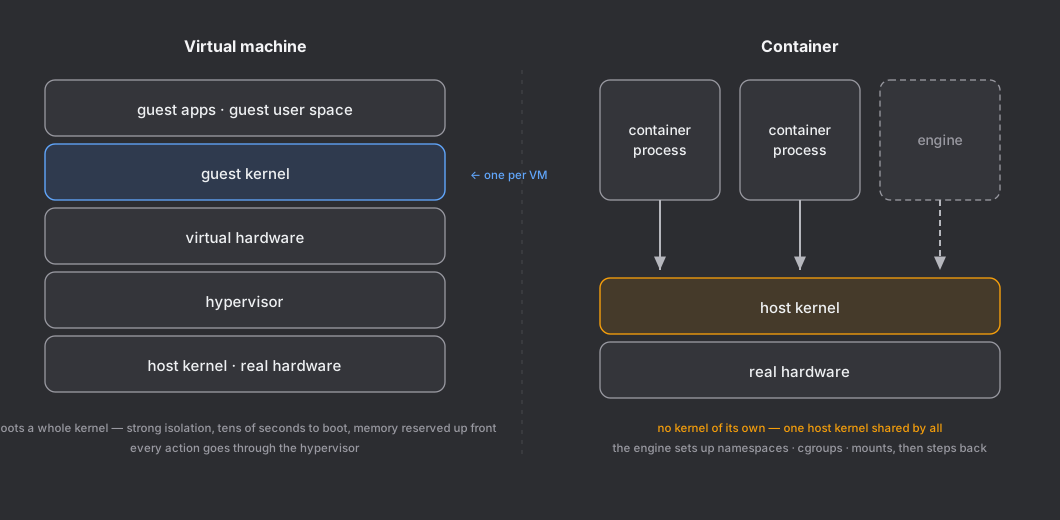
The engine is an installer. It digs the namespaces, sets the cgroups, wires the mounts, launches the process, and steps back. From then on the container process runs as a direct child of the host kernel.
Two senses of the word “container”
The same word gets used at two levels.
A container as a concept is a way of doing things: a process isolated with Linux kernel features (namespaces, cgroups).
A container as an object is one concrete instance built that way. It has an ID, shows up in docker ps, and carries an image, a writable layer, and a config.
Docker is a tool/service that implements the concept, not something above containers.
The four paths a container sees storage through
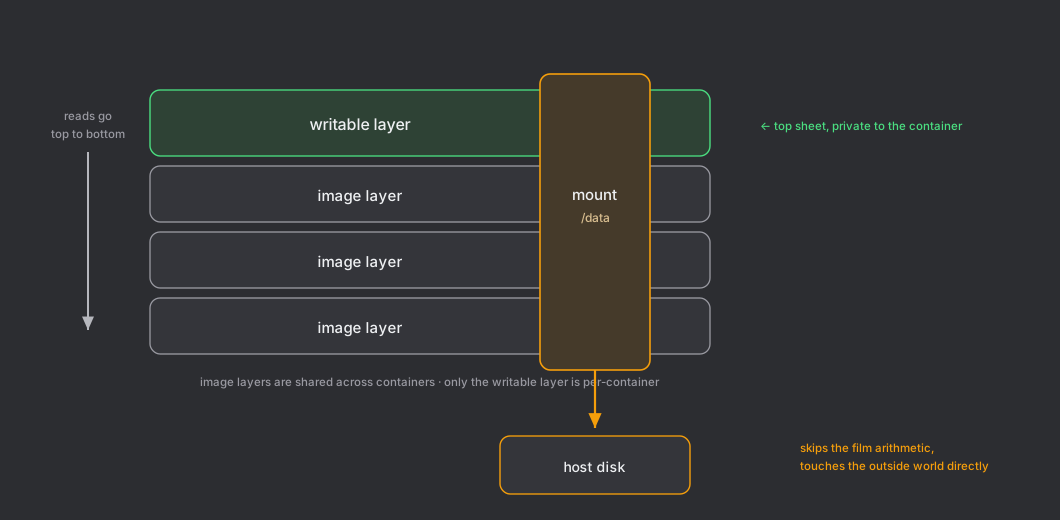
Image layers and the writable layer behave like stacked transparent films, and a mount is a hole punched through the whole stack.
Images
A container’s core job is carrying an environment somewhere else intact, and the image is what does that.
To make an image, you hand over a recipe listing the steps instead of a finished product. That recipe is the Dockerfile.
FROM ubuntu:22.04          # ① start from the ubuntu user space
RUN apt-get install -y git # ② install git
COPY train.py /app/        # ③ copy one file
docker build runs these lines from the top, and after each step it bundles up only the files that changed in that step. One bundle is a layer.
Layer ② holds /usr/bin/git and its libraries. /etc/passwd didn’t change, so it’s not in there. Layer ③ holds train.py and nothing else. A layer is a diff, not an environment.
Two properties fall out of this.
- Layers are immutable. Once built, a layer never changes. To fix something, you stack a new layer on top.
- Layers are identified by a hash of their contents, so they get shared. Twenty ubuntu-based images still mean one copy of the ubuntu layers on disk. It’s also why docker pull is fast: layers you already have get skipped.
A timing point that matters. An image isn’t defined when you create a container. It’s defined at build time. docker run just picks an image that already exists. So anything you install after the container is up can never make it into the image.
And “you can always rebuild an image from its Dockerfile” is only half true. apt-get install git guarantees no particular version! A Dockerfile is a recipe. The same recipe doesn’t guarantee the same result.
The writable layer
Image layers can’t be modified. Yet inside a container you create files and install packages all the time.
There’s a writable layer, an empty layer sitting on top of the image layers. It starts empty, and every container gets its own. The image layers below are shared with other containers; this one sheet belongs to the container alone.
Four things happen on it.
- Read: walk from the top down and return the first thing found. If the writable layer is empty, the read falls through and you see the image layers.
- New file: created in the writable layer.
- Modify: files in lower layers can’t be touched, so the file gets copied whole into the top layer and the copy gets edited (copy-up). The original stays below, but since reads come from the top, only the copy is visible.
- Delete: there’s no way to delete a file in a lower layer. Instead a marker goes into the top layer: “treat this as gone” (whiteout).
The whole strategy is called copy-on-write.
The writable layer has no fixed location. It’s one film spanning the entire file tree. What you write in /root, what you install into /opt/conda, what lands in ~/.vscode-server: all of it goes into the same writable layer.
Bind mounts and volumes: outside the films
Mounts don’t participate in the structure above. They pick one specific path, skip the film arithmetic, and plug in somewhere else directly.
docker run -v /mnt/disk1:/data my-imageWrite to /data and it goes straight to the host disk, bypassing the writable layer.
The difference between a bind mount and a volume is who decides the location.
| bind mount | volume | |
|---|---|---|
| Specified by | host path (-v /mnt/disk1:/data) | name (-v mydata:/data) |
| Location chosen by | me | the engine |
| Access from host | natural | inside the engine’s storage |
| Management tools | none (just files) | docker volume ls/rm |
| Good for | source code, datasets, shared disks | docker-only data like DB files |
Research servers use bind mounts almost exclusively. Datasets live on shared disks.
Mounts are set only when the container is created. There is no command to add one later. To change them, you delete the container and make it again.
What deletion erases
| Lives where | Shared | In the films | On container deletion | |
|---|---|---|---|---|
| Image layers | engine storage | ○ | ○ (below) | stay |
| Writable layer | engine storage | ✕ (private) | ○ (top) | gone |
| Bind mount | host disk | ○ | ✕ | untouched |
| Volume | engine storage · external | ○ | ✕ | stays |
Of the four, deletion erases exactly one: the writable layer.
“What disappears when I delete this container” isn’t decided by Docker. It’s decided by where that person put their files.
My setup, senior’s setup
Every time I made a container, I made one dedicated folder for it on the host. Then I wired three inside paths to that folder.
host/container-name/workspace  →  /workspace     work files
host/container-name/data       →  /data          data
host/container-name/home       →  /home/user     env · settings · caches
All three are bind mounts. The container is just looking into folders that live outside, so deleting the container leaves the folders alone.
The part that matters: I pulled home out too. My writable layer held a handful of apt and pip packages. Things you just reinstall.
So for me, deleting a container was a light thing. I deleted and recreated mine several times and nothing happened.
Senior didn’t make a dedicated folder. He wired the whole DLMATH disk to a single point.
entire DLMATH disk  →  /DLMATH   all code and data
home                             stays in the writable layer
Setup is one line, and the whole disk is right there.
But home never left the container. The conda environments, the IDE server, the extensions, the settings, the model caches: all of it piles up inside the container.
Delete senior’s container and the environment vanishes whole. The code is on the mount, so it survives.
That day
The disk I was mounting overflowed and every container on it stopped. I sorted the containers using that disk by how long they’d gone unused and deleted a few. The next day senior called, and I got chewed out. This post is the self-feedback.
“What disappears when you delete a container” isn’t decided by docker rm. It’s decided by where that person keeps their home. In front of someone else’s container, that was the question I should have asked.
senior의 컨테이너를 지웠다. 코드는 무사했는데 환경이 통째로 사라졌다. 왜 내 컨테이너 삭제는 가벼웠고 senior의 것은 아니었는지 이해하려면, 컨테이너가 뭔지부터 정리해야 했다.
커널과 유저 스페이스
운영체제는 두 층으로 나뉜다. 커널과 유저 스페이스다.
커널은 하드웨어를 제어한다. 메모리 할당, CPU 스케줄링, 파일 시스템 관리 등등.
유저 스페이스는 나머지 전부. 셸, 패키지, 모든 프로그램. 여기서는 하드웨어를 직접 만질 수 없고, 필요할 때마다 시스템 콜로 커널에 부탁한다.
가상 머신과 컨테이너
두 기술의 차이는 한 줄로 압축된다. 커널이 몇 개인가.
가상 머신은 게스트마다 커널을 하나씩 가진다. 커널을 통째로 띄워서 격리가 강하다. 게스트가 무엇을 하든 호스트 커널에 닿지 않는다. 게스트의 모든 동작이 하이퍼바이저를 거친다. 대신 부팅에 수십 초가 걸리고 메모리를 미리 준다.
컨테이너에는 커널이 없다. 호스트 커널이 “이 프로세스에게는 이 파일 트리와 이 프로세스 목록만 보여 준다”고 일부만 보여줘서 구현된다.
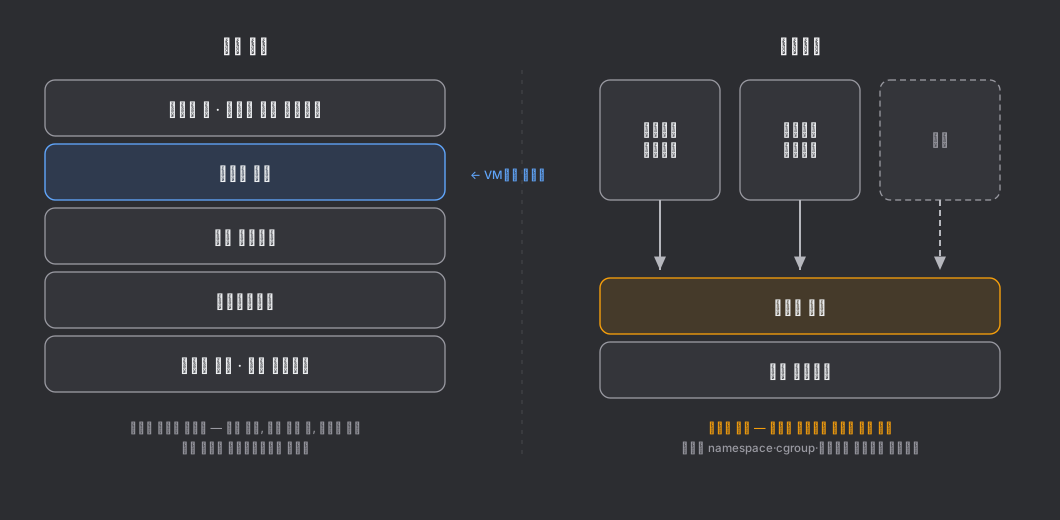
엔진은 설치 기사. namespace를 파고, cgroup을 걸고, 마운트를 연결하고, 프로세스를 띄운 다음 물러선다. 그 뒤로 컨테이너 프로세스는 호스트 커널의 직접적인 자식으로 돈다.
”컨테이너”라는 말의 두 층위
같은 단어가 두 층위에서 쓰인다.
개념으로서의 컨테이너는 리눅스 커널 기능(namespace, cgroup)으로 격리한 프로세스라는 방식이다.
개체로서의 컨테이너는 그 방식으로 만들어진 구체적 하나다. ID가 있고, docker ps에 뜨고, 이미지와 쓰기 계층과 설정을 갖추고 있다.
도커는 컨테이너의 상위 개념이 아니라 개념을 구현한 도구/서비스다.
컨테이너가 저장 공간을 보는 네 가지 경로
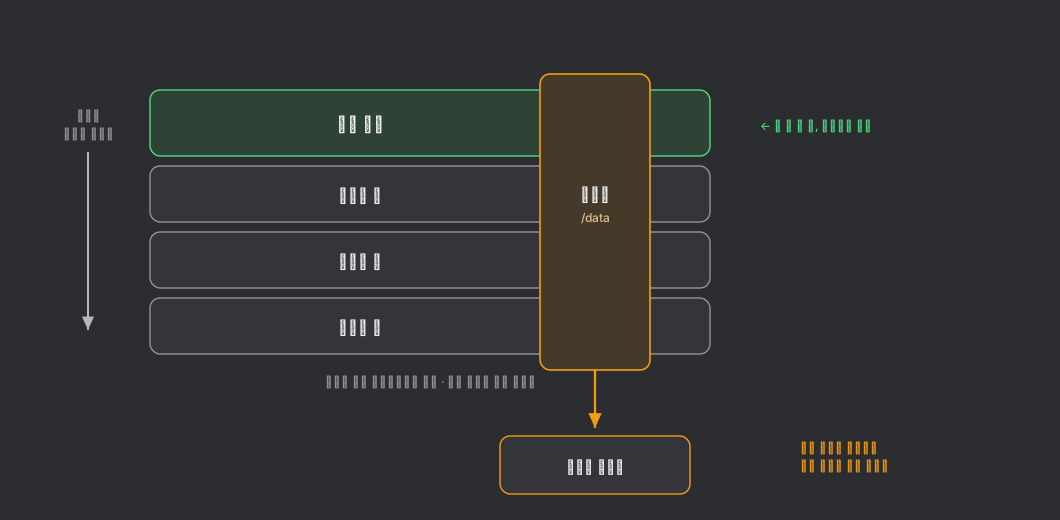
이미지 층과 쓰기 계층은 투명 필름을 겹친 것처럼 동작하고, 마운트는 그 필름 묶음에 구멍을 뚫는 것과 같다.
이미지
컨테이너의 핵심 기능은 환경을 그대로 옮기는 것이고, 그 일을 맡는 것이 이미지다.
이미지를 만들 때는 완성품 대신 만드는 순서를 적은 레시피를 준다. 이것이 Dockerfile이다.
FROM ubuntu:22.04          # ① 우분투 유저 스페이스에서 시작
RUN apt-get install -y git # ② git 설치
COPY train.py /app/        # ③ 파일 하나 복사
docker build가 이 줄들을 위에서부터 실행하고, 각 단계가 끝날 때마다 그 단계에서 달라진 파일만 따로 묶는다. 이 묶음 하나가 층(layer)이다.
②번 층에는 /usr/bin/git과 관련 라이브러리가 들어간다. /etc/passwd는 안 바뀌었으니 안 들어간다. ③번 층에는 train.py 하나만 들어간다. 층은 환경이 아니라 변경분이다.
여기서 두 성질이 파생된다.
- 층은 불변. 만들어진 뒤로 절대 안 바뀐다. 고쳐야 하면 위에 새 층을 얹는다.
- 층은 내용의 해시로 식별되고, 그래서 공유된다. 우분투 기반 이미지가 스무 개여도 우분투 층은 디스크에 한 벌뿐이다. docker pull이 빠른 이유도 같다 — 이미 가진 층은 건너뛴다.
중요한 시점 문제. 이미지는 컨테이너를 만들 때 정의되지 않는다. 빌드할 때 정의된다. docker run은 이미 존재하는 이미지를 고르는 행위일 뿐이다. 그래서 컨테이너를 켠 뒤에 설치한 것은 무엇이든 이미지에 들어갈 수 없다.
그리고 이미지를 Dockerfile로 다시 만들 수 있다는 말은 절반만 맞다. apt-get install git은 버전을 보장하지 않는다! Dockerfile은 레시피. 같은 레시피가 같은 결과를 보장하지 않는다.
쓰기 계층
이미지 층은 못 고친다. 그런데 컨테이너 안에서는 파일도 만들고 패키지도 설치한다.
이미지 층 위에 있는 빈 레이어인 쓰기 계층이 있다. 처음에는 비어 있고, 컨테이너마다 자기 것을 따로 받는다. 아래 이미지 층은 다른 컨테이너와 공유하지만 이 한 장은 컨테이너 각자 사용한다.
이 위에서 벌어지는 일은 네 가지다.
- 읽기 — 맨 위부터 아래로 내려가며 처음 발견한 것을 돌려준다. 쓰기 계층이 비어 있으면 통과해서 이미지 층 내용이 보인다.
- 새 파일 — 쓰기 계층에 만든다.
- 수정 — 아래 층 파일은 못 고치니, 위층으로 통째로 복사한 뒤 사본을 고친다(copy-up). 원본은 아래에 남지만 읽기가 위에서 내려오니 사본만 보인다.
- 삭제 — 아래 층 파일은 지울 방법이 없다. 대신 “여기는 없는 것으로 취급하라”는 표식을 위층에 남긴다(whiteout).
이 전략 전체를 copy-on-write라 부른다.
쓰기 계층에는 정해진 위치가 없다. 필름 한 장이고 파일 트리 전체에 걸쳐 있다. /root에 쓴 것도, /opt/conda에 설치한 것도, ~/.vscode-server에 깔린 것도 전부 같은 쓰기 계층에 들어간다.
bind 마운트와 볼륨 — 필름 바깥
마운트는 위 구조에 참여하지 않는다. 특정 경로 하나를 골라 필름 계산을 건너뛰고 다른 곳을 직접 꽂는다.
docker run -v /mnt/disk1:/data my-image/data에 쓰면 쓰기 계층을 거치지 않고 호스트 디스크에 바로 써진다.
bind 마운트와 볼륨의 차이는 누가 위치를 정하느냐다.
| bind 마운트 | 볼륨 | |
|---|---|---|
| 지정 | 호스트 경로 (-v /mnt/disk1:/data) | 이름 (-v mydata:/data) |
| 위치 결정 | 내가 | 엔진이 |
| 호스트에서 접근 | 자연스럽다 | 엔진 저장소 안 |
| 관리 도구 | 없음 (그냥 파일) | docker volume ls/rm |
| 어울리는 용도 | 소스 코드, 데이터셋, 공유 디스크 | DB 데이터처럼 도커만 쓰는 것 |
연구 서버는 거의 전부 bind다. 데이터셋을 공유 디스크에 두기 때문.
마운트는 컨테이너를 만들 때만 정한다. 나중에 추가하는 명령은 없다. 바꾸려면 컨테이너를 지우고 다시 만들어야 한다.
지우면 무엇이 사라지는가
| 어디에 있나 | 공유 | 필름에 참여 | 컨테이너 삭제 시 | |
|---|---|---|---|---|
| 이미지 층 | 엔진 저장소 | ○ | ○ (아래층) | 남는다 |
| 쓰기 계층 | 엔진 저장소 | ✕ (전용) | ○ (맨 위) | 사라진다 |
| bind 마운트 | 호스트 디스크 | ○ | ✕ | 손대지 않는다 |
| 볼륨 | 엔진 저장소·외부 | ○ | ✕ | 남는다 |
넷 중 삭제로 사라지는 것은 쓰기 계층 하나뿐.
“이 컨테이너를 지우면 무엇이 사라지는가”는 도커가 정하는 것이 아니라 그 사람이 파일을 어디에 뒀는지가 정한다.
내 구성, senior의 구성
나는 컨테이너를 만들 때마다 호스트에 그 컨테이너 전용 폴더를 하나 만들었다. 그리고 안쪽 경로 셋을 전부 그 폴더에 연결했다.
호스트/컨테이너명/workspace  →  /workspace      작업 파일
호스트/컨테이너명/data       →  /data           데이터
호스트/컨테이너명/home       →  /home/사용자     환경·설정·캐시
셋 다 bind 마운트. 밖에 있는 폴더를 안에서 들여다보는 것이니, 컨테이너를 지워도 폴더는 그대로 남는다.
여기서 중요한 건 home까지 뺐다는 점이다. 내 쓰기 계층에는 apt나 pip으로 깐 패키지 몇 개만 남았다. 다시 깔면 되는 것들.
그래서 내게 컨테이너 삭제는 가벼운 일이었다. 실제로 여러 번 지우고 다시 만들었고 아무 일도 없었다.
senior는 폴더를 따로 만들지 않았다. DLMATH 디스크를 통째로 한 지점에 연결했다.
DLMATH 디스크 전체  →  /DLMATH   코드·데이터 전부
home                             쓰기 계층에 그대로
셋업이 한 줄이고 디스크 전체가 바로 보인다.
다만 home을 밖으로 빼지 않았다. conda 환경도, IDE 서버도, 확장도, 설정도, 모델 캐시도 전부 컨테이너 안에 쌓인다.
senior 컨테이너를 지우면 환경이 통째로 사라진다. 코드는 마운트에 있으니 무사하고.
그날
내가 마운트하고 있는 디스크 용량이 넘쳐서 컨테이너들이 전부 정지한 일이 있었다. 이 디스크를 사용하는 컨테이너들을 마지막으로 쓴 지 오래된 순서로 정렬해 몇 개 지웠다. 다음날 senior에게 연락오고 혼났다. 셀프 피드백용 글을 쓴다.
“컨테이너를 지우면 무엇이 사라지는가”는 docker rm이 정하지 않는다. 그 사람이 home을 어디에 뒀는지가 정한다. 남의 컨테이너 앞에서는 그걸 물어봤어야 했다.